
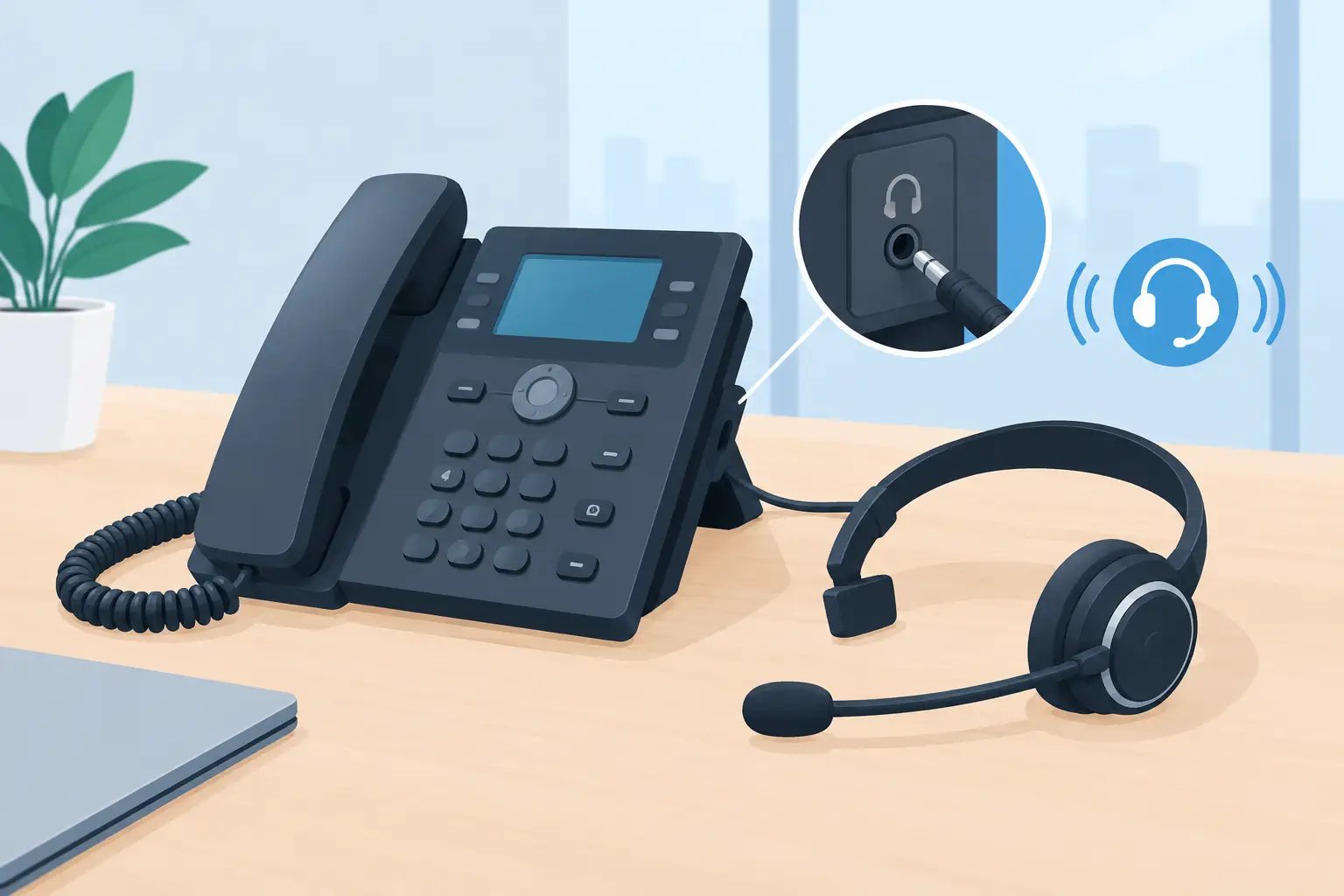
How to Enable Headset Port Settings on Business Phones
Posted by Tech Support @ Telephoneheadsets.net on 18th Oct 2026
A headset plugged into the correct socket can still fail to answer calls, provide dial tone, or route audio correctly. To enable headset port settings effectively, first establish whether the issue sits with the desk phone, a USB softphone application, a wireless base station, or the headset connection itself. These are different systems, and treating them as the same is a common cause of wasted troubleshooting time.
For business telephony, the headset port is not simply an audio output. It may also carry electronic hook-switch control, microphone signalling and a specific wiring arrangement. The right setting only works when the phone, cable or adaptor, and headset are compatible.
Start with the type of headset connection
Before changing settings, identify the connection in use. A corded office headset may connect to a telephone through an RJ9 or RJ11-style headset socket, usually via a quick-disconnect lead. A USB headset connects to a computer rather than the telephone itself. Wireless headset systems normally use a base unit connected to the phone's headset port or handset port.
This distinction matters. A USB headset will be configured in Windows, macOS, Teams, Zoom Phone or another communications application. An RJ9 headset is normally controlled by the desk phone's own menu, physical headset button, and sometimes an electronic hook-switch cable. A headset plugged into a handset socket may provide audio but will not necessarily behave as a dedicated headset port connection.
Check the telephone model before proceeding. Two phones from the same manufacturer can use different port types, menu names and headset support options. Compatibility should be confirmed by exact make and model, not by brand alone.
Enable headset port settings on a desk phone
On many IP and digital desk phones, the headset port is active by default once a compatible headset is attached. There may be no separate option labelled “enable headset port”. Instead, the phone has a headset key, headset mode, audio-path preference or programmable line setting that determines how calls are handled.
Start by pressing the headset button on the telephone. Look for a headset icon, illuminated key or display indication. If you receive dial tone through the headset, the port is already active and the remaining issue may be call answering or microphone operation.
If there is no audio, open the telephone’s settings or preferences menu. Look for wording such as Audio, Device Settings, Headset, Audio Path, Default Audio Device or Headset Mode. Depending on the model, you may need to select headset as the preferred device for outgoing calls, incoming call answering, or both.
Some systems allow users to choose whether pressing a line key opens the speakerphone, handset or headset. Selecting headset as the preferred audio path is useful for reception desks, customer service teams and other users who take calls continuously. It is less suitable where staff regularly alternate between private headset calls and hands-free discussions.
Check administrator-controlled settings
On managed office phone systems, the local user menu may not show all headset options. An IT administrator may control headset support through the phone system, device profile or provisioning platform. This is particularly common with Cisco, Avaya, Mitel and other enterprise systems.
Administrator settings can affect whether the headset key is available, whether wideband audio is permitted, and whether electronic hook-switch control is recognised. If a setting appears greyed out or reverts after the phone restarts, it is likely being applied centrally. Record the exact phone model, extension, headset model and connection method before raising the issue with your telecoms team.
Confirm the cable, adaptor and switch position
A large number of apparent settings faults are connection faults. RJ9 headset wiring is not universal. A headset that physically fits a socket may still have incorrect microphone and speaker pin assignments for that telephone. This can result in one-way audio, very low volume, constant noise, or no audio at all.
Where a headset uses an amplifier, bottom cable or wireless base, check that it is specified for the telephone model. Some devices include a compatibility switch or configuration dial. This must be set to the correct position for the phone. Do not adjust it randomly while on live calls, as a working audio path can be lost and the changes become difficult to track.
For a wireless headset base connected to a desk phone, verify that the base is connected to the intended port. The handset port and dedicated headset port are not interchangeable in every installation. If the base has a telephone interface switch, use the manufacturer’s compatibility guidance for the exact phone model.
Electronic hook-switch operation is separate from audio. A headset may provide clear sound but still be unable to answer or end calls remotely. In that case, the missing component is often an EHS cable, handset lifter, compatible base configuration or phone-side EHS setting. Remote call control should be checked only after basic audio is working.
Configure USB headsets in PC calling applications
For Teams, softphones and contact centre software, enabling the port usually means selecting the USB headset as the input and output device. Connect the headset directly to a reliable computer USB port before opening the application. Avoid unpowered hubs where possible, particularly for devices with call-control buttons or status lights.
In the computer sound settings, select the headset for both microphone and speakers. Then repeat the selection inside the calling application. System-level audio settings do not always carry through to each application.
Run a short test call. Check the microphone level, listen for playback quality, and confirm that mute and answer buttons work if those functions are required. Audio can operate without application integration, while button controls may need approved software, a driver or administrator permission. This depends on the headset model and communications platform.
If users report that notification sounds play through the headset but calls do not, check the application’s device selection rather than the headset port. If calls work but microphone audio is absent, inspect privacy permissions and ensure the application is allowed to use the microphone.
Troubleshoot symptoms in the right order
Work from the physical connection towards the software or phone-system settings. This avoids resetting a phone when the real issue is an incompatible lead.
First, confirm power where applicable. Wireless bases and amplified headset units need power, and low battery can produce intermittent audio or failed call control. Next, reseat every connection and inspect the quick-disconnect connection for a partial fit. Test with a known-working compatible headset or cable if one is available.
Then check volume controls at every point: the phone, headset amplifier or base, headset inline control and application. Very low microphone transmit volume is often mistaken for a faulty headset port. Conversely, excessive transmit gain can cause distortion or echo.
Finally, restart the affected device. A desk phone restart can restore a port that has not initialised correctly after a power interruption, while reconnecting a USB headset can force an application to detect it again. Do not factory-reset a managed business phone unless instructed by the system administrator, as it may remove locally stored configuration or delay service restoration.
When a headset port cannot be enabled
Some entry-level, analogue or older desk phones do not have a dedicated headset port. Others support a headset only through an amplifier, handset lifter or manufacturer-specific accessory. In these cases, no menu setting can create functionality the hardware does not provide.
Similarly, not every headset supports electronic answer and end-call control on every phone. A compatible audio cable may be all that is needed for basic calls, but remote answering requires a supported control method. Decide which functions are operationally necessary before buying replacement equipment. For a single office user, reliable audio may be sufficient. For a busy call-handling team, remote call control and a stable compatibility-tested connection are usually worth specifying.
TelephoneHeadsets.net recommends selecting by exact phone model and connection type, particularly where an existing headset has produced one-way audio or failed call control. Matching the hardware correctly is usually faster than trying to compensate for a wiring mismatch through settings.
A useful final check is to place one inbound and one outbound test call after every change. Confirm audio in both directions, mute operation, ringing behaviour and, where required, remote answer and end-call control. A setting is only truly enabled when it works in the call flow your team uses every day.