
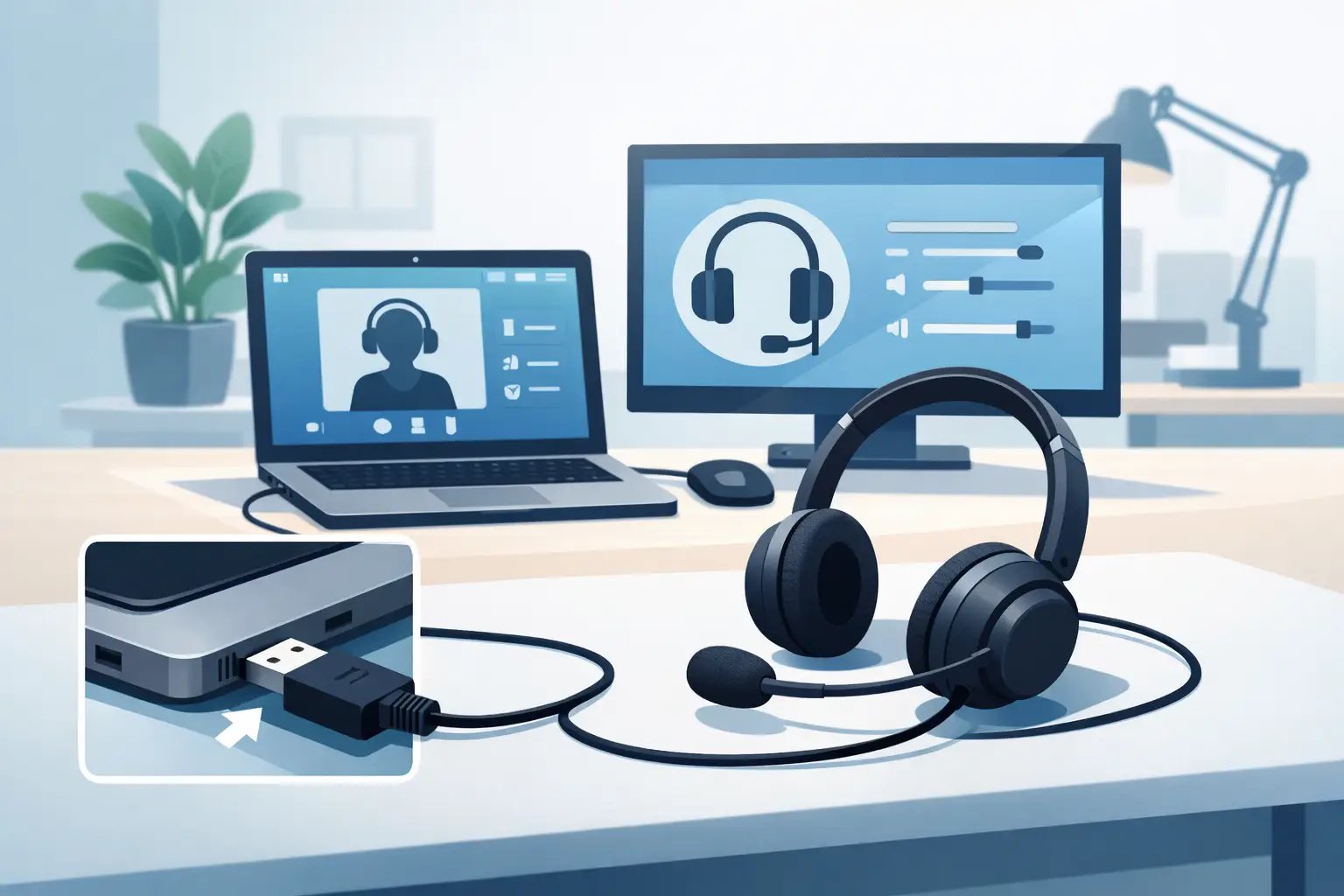
How to Setup a USB Calling Headset at Work
Posted by Tech Support @ Telephoneheadsets.net on 18th Oct 2026
A USB headset can be ready for calls in minutes, but the wrong audio device setting can still leave an agent speaking into a laptop microphone. Knowing how to set up a USB calling headset properly means checking the connection, selecting it in the calling application and confirming that call controls work before the first customer call.
For office, contact centre and hybrid teams, USB headsets are usually designed for computer-based calling. They connect to a PC or laptop for Microsoft Teams, Zoom, RingCentral, 3CX, Webex and other softphone platforms. A USB plug on a desk phone does not automatically mean every USB headset will work with it, so compatibility should be confirmed before purchase.
Check what the headset will connect to
Start with the device handling the call. If staff make calls through a computer application, a standard USB-A or USB-C calling headset is normally the correct category. If the computer only has USB-C ports and the headset has USB-A, use a suitable adaptor or choose a native USB-C model. Where possible, connect directly to the computer rather than through an unpowered hub or monitor port, particularly in busy call-handling environments.
Desk phone use needs more care. Many business telephones have a USB port for accessories, charging or administration, rather than for generic USB audio. Some IP phones support approved USB headset models, while others need an RJ9 headset lead, an electronic hook switch cable or a dedicated wireless base station. Check the exact phone make and model, not just the brand name, before assuming a USB headset is suitable.
A quick pre-installation check prevents most ordering and deployment mistakes:
- Confirm whether calls are made through a PC softphone, a USB-capable IP phone or a traditional desk phone.
- Identify the available connection type: USB-A, USB-C, RJ9 or another manufacturer-specific interface.
- Check whether users need mono or duo wearing style, and whether all-day call handling requires noise-cancelling microphones.
- Establish whether answer and end-call controls are required from the headset itself.
How to set up a USB calling headset on a computer
1. Connect the headset directly
Plug the headset into an available USB port while the computer is switched on. Most current USB headsets are plug-and-play and will be recognised automatically by Windows or macOS. You may hear a connection sound, see a notification or notice the headset name appear in the system audio controls.
If the headset includes an inline control unit, connect the USB lead from that unit rather than attempting to connect any secondary cable. Avoid forcing USB-C connectors or using damaged adaptors. A loose adaptor can cause intermittent microphone drop-outs that look like a software fault.
2. Select it as the input and output device
The computer may recognise the headset without making it the default device. Open the operating system sound settings and select the headset for both output (speakers) and input (microphone). The displayed name may be the manufacturer name, the headset model or a generic USB audio device.
On a shared workstation, check this setting at the beginning of each shift. Docking stations, webcams and external monitors can each present an audio device to the computer, so the previous user's selection may not be appropriate.
Set the output volume to a moderate level first. High volume can cause fatigue over a full day and may create distortion. Speak at a normal voice level while checking microphone input. If the input level barely moves, verify that the microphone boom is positioned close to the corner of the mouth, rather than directly in front of it.
3. Choose the headset within the calling platform
Next, open the softphone or collaboration platform used for calls. Go to its device, audio or settings menu and select the USB headset as the speaker and microphone. Do not rely solely on the computer default setting: many calling applications retain their own selected devices.
Make a test call or use the platform's test feature. Listen for clear incoming audio, then confirm the other party can hear you without echo or excessive background noise. A headset can play sound correctly while still using the computer's internal microphone, which is why both directions must be tested.
For contact centre software, the relevant settings may be controlled by an administrator or browser-based dialler. If the headset is not listed, refresh the browser, sign out and back in, or ask IT whether the platform needs a supported integration or desktop application.
4. Install the manufacturer software only when needed
Some professional headsets include optional software for firmware updates, call-control integration, equaliser settings and device management. This is worthwhile when deploying multiple headsets, supporting Microsoft Teams functions or resolving a recognised compatibility issue.
It is not always necessary for basic audio. Installing several competing audio utilities can complicate troubleshooting, particularly on managed computers. Follow the organisation's IT policy and use the current approved software version where one is required.
Set up call controls and mute correctly
Many USB calling headsets have buttons for volume, mute, answer/end call and sometimes a dedicated Teams button. Volume and mute usually work immediately because they control the audio device directly. Answer/end-call functions depend on whether the calling application supports that headset model and whether any required integration software is installed.
Test these functions individually. Place a test call, press the headset answer button, mute and unmute, then end the call. Check the screen notification and ask the test caller whether the mute function behaved as expected. A mute light on the inline controller is useful, but it does not always confirm that the softphone application has muted its own microphone.
For Teams users, a Teams-certified headset may provide more reliable call status and button control than a general USB audio headset. That does not mean a non-certified model cannot deliver good audio; the trade-off is mainly around integrated controls and predictable behaviour across managed devices.
Common USB headset setup faults
The headset is connected but no sound is heard
This is usually an output-device selection issue. Check the sound settings in both the operating system and the calling application. Then unplug and reconnect the headset to a different direct USB port. If audio still plays through the laptop speakers, close and reopen the calling application after selecting the USB device.
Other people cannot hear the user
Confirm that the headset microphone, rather than the built-in microphone, is selected. Check that the inline or boom mute button is off and inspect the microphone boom position. Windows privacy settings and browser permissions can also prevent a dialler from accessing the microphone.
The headset works for music but not for calls
Music applications often follow the computer default audio output, whereas calling platforms can use saved device settings. Select the USB headset inside the calling platform, then restart the application. For browser calling, allow microphone access when prompted and confirm the correct microphone in the browser's site settings.
Answer and end-call buttons do not work
Basic audio may be functioning as intended, while call control is not configured. Confirm that the headset model is supported by the softphone platform, install the required manufacturer integration software if approved, and update the headset firmware if recommended. If a desk phone is involved, revisit compatibility - a USB connection alone is not sufficient proof of call-control support.
Audio cuts out or sounds distorted
Move the connection from a hub to a direct computer port. Test without a docking station or USB extension lead, then check for cable damage and operating system updates. In a busy office, radio interference affects wireless models more often than wired USB headsets, but poorly shielded adaptors and unstable docks can still create problems.
A practical setup standard for teams
For one headset, a quick test call is normally enough. For an office rollout, use a repeatable process: connect the headset, select it in system and softphone settings, test speaker and microphone audio, test mute and call control, then record the approved model against the user's calling platform.
This small amount of discipline matters when different teams use different systems. A headset that is ideal for a USB softphone may be unsuitable for an Avaya, Cisco, Mitel or other desk phone unless the required interface and compatibility are confirmed. TelephoneHeadsets.net focuses on this model-specific approach because it reduces costly returns and avoids disruption on the call floor.
Once the headset is selected correctly and tested in the actual calling application, leave a short setup note with the workstation. The next user will spend less time searching through audio menus and more time handling calls clearly.