
Office Telephony Headset Connector Guide
Posted by Tech Support @ Telephoneheadsets.net on 18th Oct 2026
A headset can be excellent on paper and still be the wrong purchase if its connector does not match the phone, cable or calling platform in use. This office telephony headset connector guide is designed to remove that uncertainty before equipment is ordered for an office, reception desk or contact centre.
The key point is simple: the connector on the headset is only one part of compatibility. A desk phone may need a dedicated bottom cable, a USB headset may require a computer rather than a telephone, and an electronic hook switch can affect how calls are answered. Check the complete call setup, not just the plug at the end of the lead.
Start with the device handling the call
Before selecting a connector, establish where staff actually take calls. In many offices, this is a dedicated desk phone from Avaya, Cisco, Mitel, Gigaset, Grandstream, Alcatel or another manufacturer. In others, calls are handled through Microsoft Teams, Skype for Business, a softphone or a contact-centre application on a PC.
A traditional desk phone normally uses a telephone headset connection such as an RJ9-style handset port or a manufacturer-specific quick disconnect cable. A computer-based setup normally uses USB. These are not interchangeable without the right equipment in between, and an adaptor does not automatically provide call control or correct microphone operation.
If a user needs to work across both a desk phone and a computer, assess that requirement at the start. A dual-connectivity headset or a switching solution may be more appropriate than issuing separate headsets, but it will cost more and compatibility still needs checking on both devices.
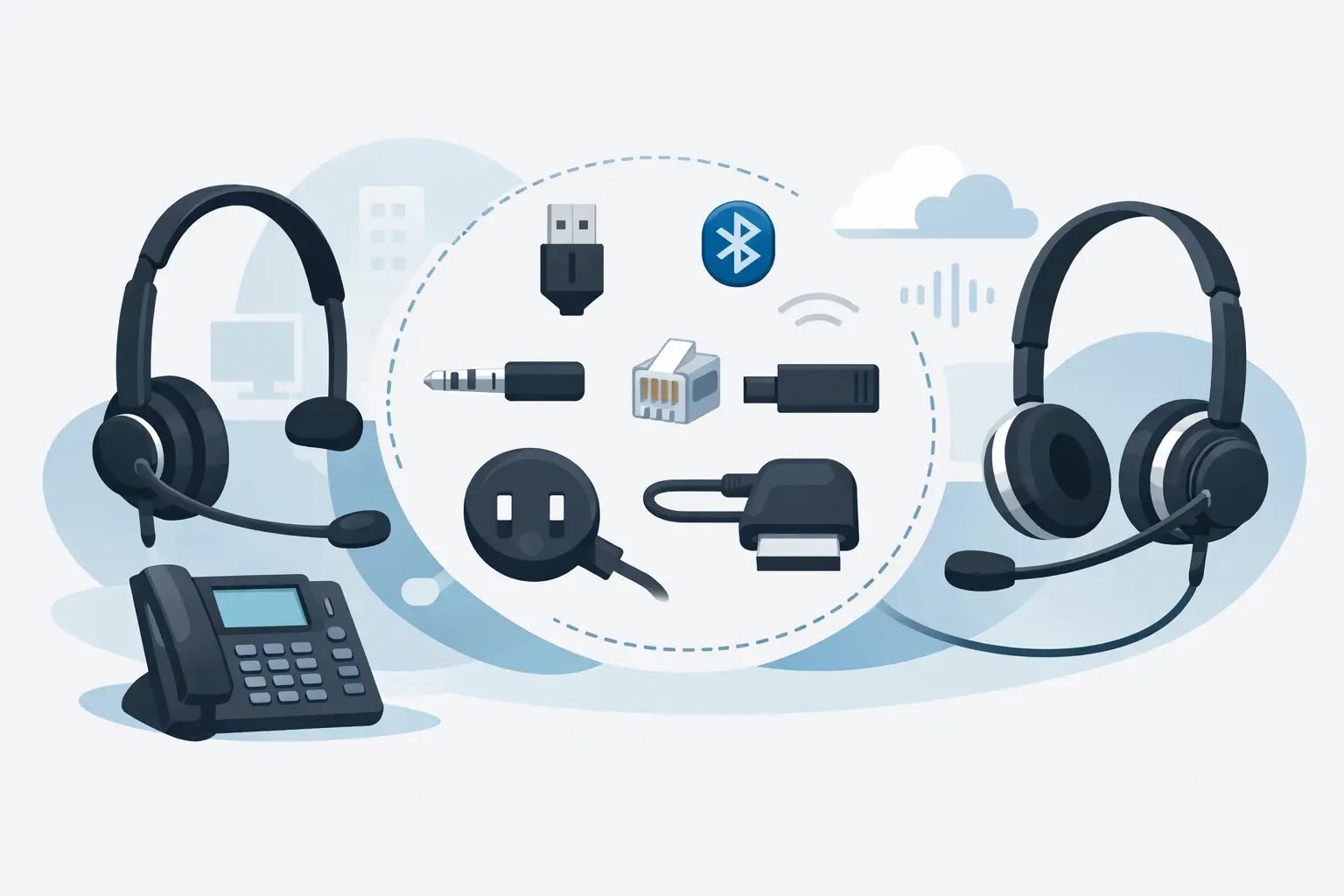
Office telephony headset connector guide: the main types
RJ9, RJ10 and RJ22 handset connectors
RJ9, RJ10 and RJ22 are commonly used names for the small four-position modular connector found on many corded telephone handsets and headset ports. In business telephony, buyers often refer to this simply as an RJ9 connection. It is a common desk-phone headset connector, but the physical plug alone is not enough to confirm compatibility.
Different phone manufacturers can use different wiring arrangements. A cable that fits an Avaya handset socket may not deliver the correct transmit and receive paths on a Cisco or Mitel phone. The result can be no audio, audio in one direction only, or a microphone that does not work.
For this reason, a professional telephone headset is often paired with a phone-specific connection lead. The headset itself may have a Quick Disconnect fitting, while the lead from that fitting to the telephone is selected for the exact phone make and model. This approach makes replacement and deployment easier, particularly where an organisation has a standard handset model across multiple sites.
Quick Disconnect connectors
Quick Disconnect, often shortened to QD, is a connector between the headset and its lower cable. It allows the user to leave their desk without removing the headset, or for a supervisor to disconnect a headset from one phone cable and connect it to another compatible headset.
QD is useful in fixed desk-phone environments, but it is not a universal standard across all headset manufacturers. A Plantronics-style QD, for example, should not be assumed to fit a Jabra or other branded QD system. The correct headset family and compatible bottom cable must be selected together.
This is one of the most common purchasing errors in office telephony: ordering a headset with a QD fitting and assuming the desk-phone cable is included or interchangeable. Confirm whether the product is a complete headset and cable package, or whether the required lower cable is supplied separately.
USB connectors
USB headsets connect directly to a computer, laptop, docking station or compatible USB-enabled telephone. They are commonly used for Teams, Zoom, softphones, web-based calling platforms and contact-centre applications.
For a PC-based user, USB is usually the most straightforward option. It carries both audio and microphone signals digitally and avoids the telephone wiring variations associated with analogue handset ports. Many USB models also include in-line controls for volume, mute and call handling, although the available features depend on the software platform and headset certification.
Do not select USB solely because the organisation uses IP telephony. An IP desk phone is not necessarily a USB headset host. Some IP phones have a USB port intended for firmware, charging or storage rather than headset audio. Check the phone documentation or the exact compatibility listing before treating a USB port as a headset socket.
RJ11 and modular telephone connectors
RJ11 is most closely associated with telephone line connections. It is often mentioned when buyers are trying to identify small modular plugs, but it should not be treated as a standard headset connector.
The plug may look similar to an RJ9-style handset connector, yet the width, number of positions, wiring and intended function can differ. Connecting a headset to a line socket is not a valid alternative to using the handset or dedicated headset port. Where the phone has only a handset socket, use the appropriate headset cable designed for that phone.
3.5 mm and 2.5 mm plugs
Some office phones and cordless handsets provide a 2.5 mm or 3.5 mm headset socket. These are more familiar as audio jack formats, but phone implementations can vary. A 3.5 mm headset designed for a mobile phone or computer may have different pole configuration and microphone wiring from one designed for a desk phone.
Treat these connections as model-specific. A standard-looking jack is not proof that any consumer headset will work correctly. For business use, select a headset listed for the telephone model or confirm the required connector and pin arrangement with the phone manufacturer.
Check the phone model, not only the brand
A manufacturer name narrows the search, but the model number provides the answer. Cisco, Avaya and Mitel each have multiple phone ranges, and ports can differ within the same family. One handset may have a dedicated RJ9 headset port, another may need the headset connected through the handset socket, and a third may support USB or Bluetooth accessories.
Find the full model number on the label beneath or behind the phone. Record any expansion module, adaptor or wireless base already connected. For a shared reception or customer-service desk, also identify whether the user needs a single-ear mono headset to remain aware of colleagues, or a dual-ear binaural headset for better concentration in a busy environment.
The correct buying sequence is phone model first, connector second, headset style third. Reversing that sequence creates unnecessary returns and delays.
Do you need a handset lifter or EHS cable?
A wired headset connected to a desk phone can provide audio without allowing the user to answer calls away from the handset. To answer and end calls remotely, the installation may need either a mechanical handset lifter or an Electronic Hook Switch cable, commonly called an EHS cable.
A handset lifter physically raises the telephone handset when the headset control is pressed. It can work with many compatible desk-phone setups, but it adds a moving component and must be positioned carefully. An EHS cable integrates with supported phones electronically, providing remote answer and end-call control without lifting the handset.
EHS support is dependent on the phone model, headset base or adaptor, and cable type. It is an optional convenience feature rather than a basic audio requirement. For a receptionist or high-volume agent, it can materially improve call handling. For occasional desk-phone users, a standard wired connection may be the more cost-effective choice.
Common connector mistakes to avoid
The first mistake is confusing a plug that fits with a connection that works. Similar modular connectors can have different wiring, so a physical fit is only the starting point. The second is assuming every headset includes the lead required for a specific telephone. QD headsets often need a separately selected bottom cable.
The third is treating USB and desk-phone connections as equivalent. USB is normally for computers and compatible USB phones, while an RJ9-style cable is for analogue handset or headset ports. Finally, do not overlook call control. If users expect to answer calls from the headset, make sure the phone supports the required lifter or EHS arrangement.
A practical compatibility check before ordering
For a single user, confirm the exact telephone model, whether calls are placed on the desk phone or PC, and whether remote answer/end-call control is needed. Then select a mono or duo headset according to the noise level and working style.
For a larger rollout, create a short equipment list by location. Include phone model, existing headset connection, required cable, call-control requirement and preferred wearing style. This prevents different teams ordering visually similar headsets with incompatible cables and gives IT a clear installation record for future replacements.
TelephoneHeadsets.net organises headset options around phone brands and models because this is the most reliable way to reduce connector errors. Where there is any doubt, the phone model should drive the selection rather than the appearance of the socket.
A compatible connector is not a minor technical detail. It determines whether the headset delivers clear two-way audio, supports the way staff answer calls and remains practical to replace as equipment changes. Take a moment to identify the phone model and connection path first, and the right headset choice becomes considerably more straightforward.