
QD Headset Connection: A Practical Buying Guide
Posted by Tech Support @ Telephoneheadsets.net on 18th Oct 2026
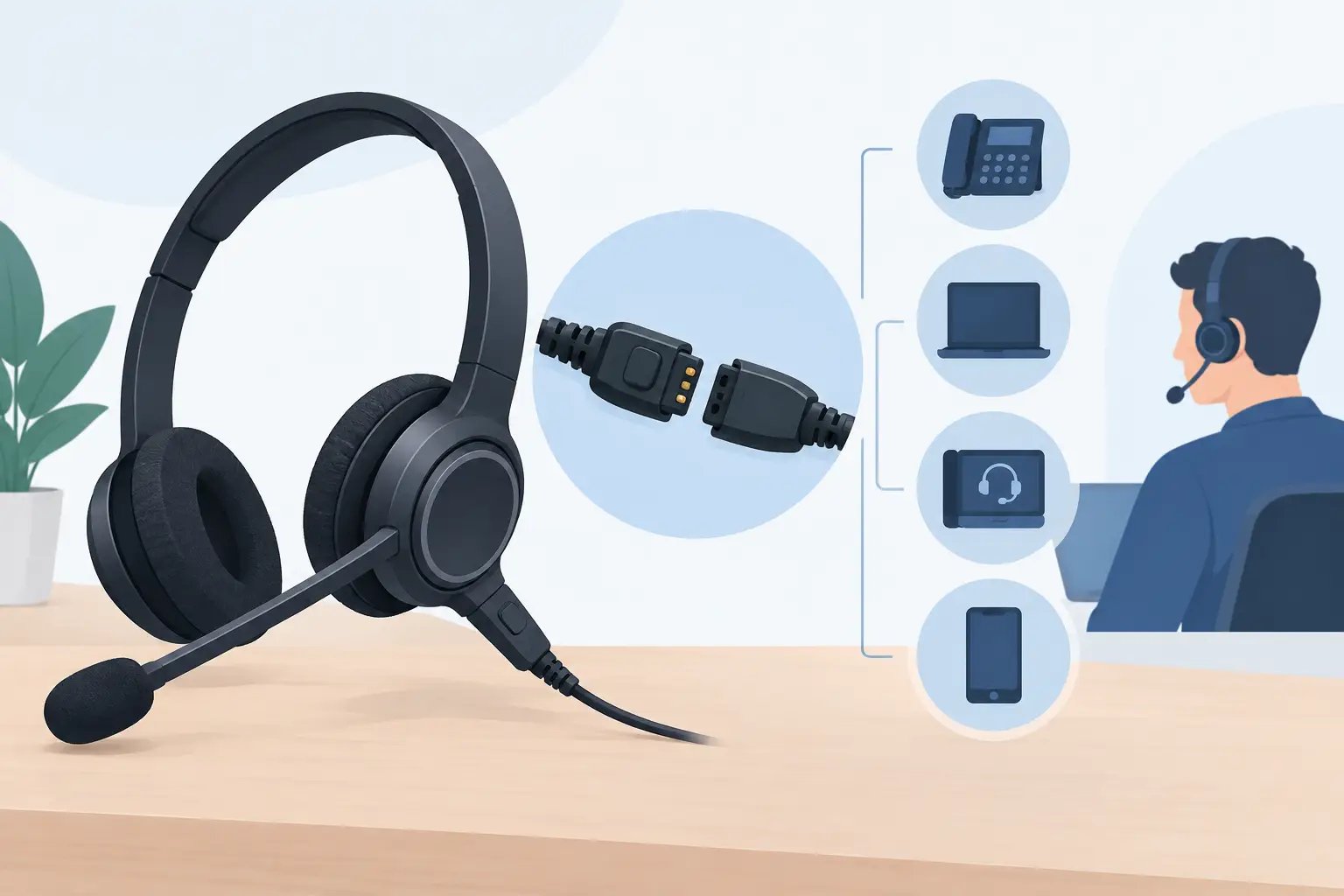
A QD headset connection is designed for business users who need to leave their desk without removing their headset. The quick disconnect sits between the headset and its connection lead, allowing the two parts to separate and reconnect quickly. It is a practical feature for reception desks, contact centres, offices and any role where calls are handled throughout the day.
The key point is that a QD connection is not normally the plug that goes into the telephone. It is the join between the headset and the lead. The lead, amplifier or adaptor then determines whether the headset will work with a particular desk phone, handset port or communications device.
What is a QD headset connection?
QD stands for quick disconnect. It is a small inline connector, usually positioned on the headset cable below the ear piece or headband. When a user needs to step away, they can disconnect the headset from its lead without pulling the lead from the phone or disturbing the desk setup.
This arrangement is common with professional wired headsets. A single QD headset can often be used with different connection leads, provided the headset and lead use the same QD standard. That can make replacement and reconfiguration more straightforward, particularly where an organisation uses more than one telephone model.
However, QD fittings are not universal. Plantronics-compatible, Jabra-compatible and other proprietary QD systems have different connector designs. A headset with one type of QD fitting will not necessarily connect to a lead made for another brand or headset family. The correct choice starts with both sides of the connection: the headset's QD type and the telephone or device it needs to serve.
How a QD headset connects to your phone
A typical setup has three parts: the headset, a QD lead and the phone connection. The headset plugs into the QD end of the lead. The other end of the lead connects to the phone's headset socket, handset socket, an amplifier, or a suitable adaptor.
For many desk phones, the lead terminates in an RJ9-style modular plug. This is often described as a headset plug, but the wiring arrangement can differ between phone manufacturers and models. Two leads may look physically identical yet deliver different microphone and speaker pinouts. Using the wrong one can result in no audio, one-way audio, a very quiet microphone or excessive background noise.
Some telephones require an amplifier rather than a direct-connect lead. The amplifier sits between the QD headset and the phone, providing compatibility controls and, in some cases, separate volume and microphone adjustment. This is particularly useful with older analogue desk phones or installations where direct connection does not provide satisfactory transmit and receive levels.
For USB softphone use, a traditional QD-to-RJ9 lead is not suitable. A USB adaptor or a purpose-built USB headset is usually the better option. The QD format can still be relevant where a USB adaptor accepts the same headset family, but buyers should confirm support for their calling platform and operating system before ordering.
The headset port and handset port are not the same
A desk phone with a dedicated headset port can often accept the correct direct-connect lead. The phone may also require headset mode to be enabled in its menu or through a physical button. In that setup, users can normally answer and end calls using the phone's headset key.
Where no headset port is available, the lead may connect between the telephone handset and the base unit using an amplifier or handset-lifter arrangement. This can work well, but it is a different configuration. It may require the handset to remain on the telephone or a mechanical accessory to answer calls remotely.
Do not assume that every RJ9 or RJ11 socket is a headset socket. Check the phone documentation, the label next to the port and the exact phone model. Physical fit alone is not proof of compatibility.
Choosing the correct QD lead
The most accurate way to buy a QD lead is to identify the precise telephone manufacturer and model, then match it to the headset range. A Cisco, Avaya, Mitel, Yealink, Grandstream or Alcatel phone may require a different lead even when the connectors look alike.
Before selecting a lead, confirm whether your current headset is mono or duo, whether it has a QD connector, and which QD standard it uses. Mono and duo refer to the wearing style rather than telephone compatibility, so either can use the same lead if they belong to the same compatible headset family.
Also establish how the phone is currently used. If staff need only basic call audio at the desk, a direct-connect lead may be the simplest and most cost-effective choice. If they need remote answer and end call control, the phone may require an electronic hook switch cable, wireless base or USB solution. A QD connection alone does not add remote call control.
For shared-desk environments, QD headsets have a practical advantage. The installed phone lead can remain at the workstation while each user connects their own headset. This supports hygiene policies and reduces the risk of repeated unplugging from the telephone port. It also makes it easier to replace a damaged headset without rewiring the whole position.
Common QD headset connection problems
Most connection issues come down to an incorrect lead, a disabled headset setting or a misunderstanding about the connection path. Start by checking that the QD halves are firmly joined. They should be pushed together fully but should not require excessive force.
If you can hear callers but they cannot hear you, the microphone circuit may not match the phone's wiring. If callers can hear you but you have no incoming audio, the receive wiring or phone setting may be wrong. Distorted sound can indicate an incompatible lead, an unsuitable amplifier setting or a damaged cable.
Poor microphone volume is not always a lead fault. Position the microphone close to the corner of the mouth, rather than directly in front of it, and check that the boom is not muted. On compatible desk phones, review the headset transmit level in the phone's administration settings. On an amplifier, adjust the microphone level gradually and test with a colleague.
Intermittent audio can occur if the QD connector is contaminated, stretched or repeatedly pulled by the cable. Inspect both sides for bent contacts, damaged locking sections or a loose fit. Replacing only the lead can solve the issue where the headset itself is otherwise in good condition.
When a QD setup is the right choice
A QD headset setup is well suited to fixed desk phones, busy call-handling teams and organisations that want to standardise on a serviceable wired headset arrangement. It separates the wearable headset from the phone-specific lead, which can lower replacement costs when office telephony changes.
It is less suitable where staff regularly move between desks, use mobile devices or take calls mainly through Teams, Zoom or another softphone application. In those cases, USB or Bluetooth headsets may be more appropriate, depending on call quality, security policy and device compatibility.
The decision should be based on the communication platform rather than the connector alone. A reliable setup is one where the headset, QD lead, telephone model and call-control requirements have all been checked together.
When replacing a headset or lead, record the phone model and the existing connector type before ordering. That small check avoids the most common compatibility mistake and keeps business calls clear from the first connection.