
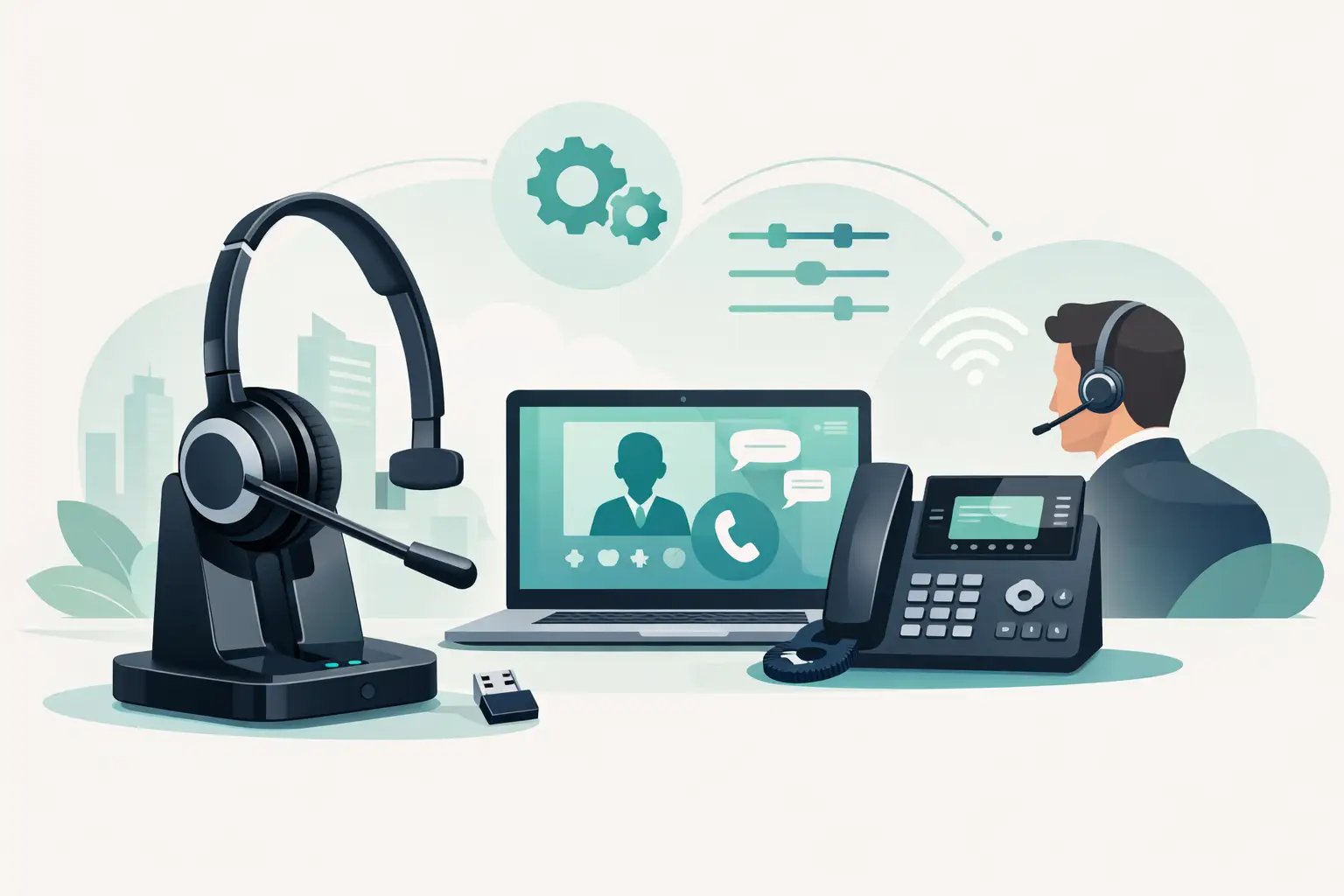
Yealink Headset Configuration for Business Calls
Posted by Tech Support @ Telephoneheadsets.net on 18th Oct 2026
A headset can appear to fit a Yealink phone and still fail at the point that matters: answering a call from the headset or getting clear two-way audio. Correct Yealink headset configuration begins with the exact phone model, the headset connection type and the call-control method required by the user. Treating these as separate checks prevents the usual problems of missing dial tone, inactive answer buttons and inconsistent audio.
Start Yealink headset configuration with compatibility
Before connecting anything, identify the full Yealink telephone model from its label or on-screen system information. A T4, T5 or MP-series phone may have different ports, firmware options and support for electronic hook switch control. The family name alone is not enough when ordering or configuring business headsets.
Next, establish how the user needs to work. A receptionist or contact centre adviser may need remote answer and end-call control, while an occasional desk-phone user may only need a wired headset with a physical switch on the cable. These are different requirements. A headset that delivers audio is not necessarily able to control calls on the phone.
Also confirm whether calls are made primarily on the Yealink desk phone, a computer softphone, or both. USB headsets are generally the practical choice for PC calling. Desk-phone calling normally needs a headset port connection, a compatible amplifier or base station, and sometimes an EHS cable. Hybrid users may need a headset system designed to connect to both devices.
Check the connection, not just the headset brand
Yealink desk phones commonly use an RJ9-style headset socket, but similar-looking modular plugs are not automatically interchangeable in every setup. Wiring standards and headset interfaces can differ. The supplied quick-disconnect lead, bottom cable or adapter must be specified for the phone and headset combination.
Do not use the handset socket as a substitute for the headset socket unless the equipment instructions specifically require it. The result can be no audio, poor microphone performance or audio that remains routed to the handset. If a wired headset includes an amplifier, connect the amplifier to the phone as instructed, then connect the headset to the amplifier.
For wireless DECT headsets, the base station is the control point. It may connect to the Yealink phone through a dedicated desk-phone port and an EHS lead, or through a mechanical handset lifter where EHS is not supported. A lifter physically raises the handset when a call is answered. It works, but requires correct positioning and is less tidy than an EHS installation.
Choosing EHS or a handset lifter
Electronic hook switch control allows a compatible wireless headset to answer, end and occasionally mute calls away from the desk. It is often a worthwhile requirement for managers, mobile office staff and regular call handlers. It reduces repeated handling of the phone and gives the user a usable working range within the office.
However, EHS compatibility depends on all parts of the installation: the Yealink model, its firmware, the headset system and the correct EHS adapter. A compatible headset alone does not provide remote call control. This is why a phone-model-led compatibility check is safer than purchasing a generic wireless headset and assuming the USB or RJ9 connection will cover every function.
A handset lifter can be the right alternative where no approved EHS solution is available or where an existing headset platform needs to be retained. It needs careful fitting. The lifter must sit directly above the handset’s earpiece area, raise the handset far enough to release the hook switch, and be tested several times before deployment. If it is offset by a few millimetres, calls may not connect consistently.
Configure the Yealink phone settings
Once the hardware is connected, open the telephone menu and look for headset-related options. Menu names vary by model and firmware, but the relevant settings are normally found under Features, Settings or Basic Settings.
Enable headset mode where the phone requires it. On many Yealink phones, pressing the headset key then routes calls to the connected headset instead of the handset or speakerphone. If the user expects all calls to default to the headset, configure headset priority or headset mode only where that option is available and appropriate for the office.
This choice has a practical trade-off. A permanent headset default suits staff who spend most of the day on calls. In a shared office, it can cause confusion when another user expects incoming audio through the speaker. Set the behaviour around the actual working pattern rather than applying one standard to every extension.
Check the ringer device as well. Some users want the desk phone to ring audibly while the headset provides a tone. Others prefer the headset alert to avoid disturbing colleagues. Wireless systems may offer several alert tones and volume levels through their base or headset controls. Keep external ringing at a level where calls are not missed without making the office unnecessarily noisy.
For EHS installations, ensure the phone's headset mode is active before testing remote answer. If the headset button has been disabled through provisioning or a locked configuration, local changes may not be retained. In centrally managed environments, the telecom administrator may need to amend the phone template rather than the individual handset.
Set microphone and receive levels carefully
Good audio is not simply a matter of increasing volume. Set the headset receive volume to a comfortable level first, then make a test call and adjust the microphone transmission level only if the far end reports speech that is too quiet or distorted.
Avoid setting either control at maximum by default. Excessive receive gain can cause fatigue over a full shift, while excessive microphone gain can introduce clipping, background noise or echo. This matters particularly in open-plan offices, where a noise-cancelling microphone helps but cannot remove every nearby conversation.
Position the microphone about two finger widths from the corner of the mouth, not directly in front of it. A boom placed too far away makes users compensate by raising their voice; too close can create popping sounds and breath noise. For a team rollout, establish a sensible starting position and teach it during issue-out rather than leaving each user to guess.
USB headsets for Yealink softphone users
If the Yealink device is a USB desk phone or the user makes calls through Yealink USB Connect, Microsoft Teams or another computer calling application, select the USB headset as both the speaker and microphone in the computer's sound settings. Then check the same selections in the calling application itself. Application settings can override the Windows or macOS default device.
Headset buttons may provide call control in supported softphone applications, but this is software-dependent. Update the headset management software and the relevant call-control integration where required. If audio works but the answer button does not, the fault is often an integration or application setting rather than the headset hardware.
For a shared workstation, avoid relying on a user’s personal Bluetooth pairing. A corded USB headset is usually easier to identify, support and replace. Wireless USB systems offer greater mobility, but need charging routines and a clear method for pairing a replacement headset to the correct base.
Test each call path before rollout
A proper test takes only a few minutes and identifies issues that a single outbound call can miss. Test an inbound call, outbound call, hold and resume, transfer, mute, volume adjustment and headset answer/end control where fitted. Confirm that the call returns to the expected device after a transfer or when the handset is lifted.
Use a second person for the test. The wearer may hear perfectly while their microphone is muted, too low or routed to the wrong input. Ask the remote participant to comment on volume, clarity, background noise and echo.
If remote answer does not work, verify the EHS adapter model and its connections before changing phone settings. If there is no audio, recheck the socket being used and the correct bottom cable. If audio is one-way, inspect both the lead and the selected audio device, especially on USB installations. These checks solve most faults faster than repeated reboots.
For larger deployments, document the approved Yealink phone model, headset model, cable or EHS part number, firmware version and required settings. That record makes replacement purchasing much more accurate and reduces desk-side troubleshooting later.
The best configuration is the one that matches how the extension is actually used. For help selecting a compatible wired, USB or wireless option for a specific Yealink phone, TelephoneHeadsets.net keeps the decision focused on the phone model and the call-control features your team needs.